

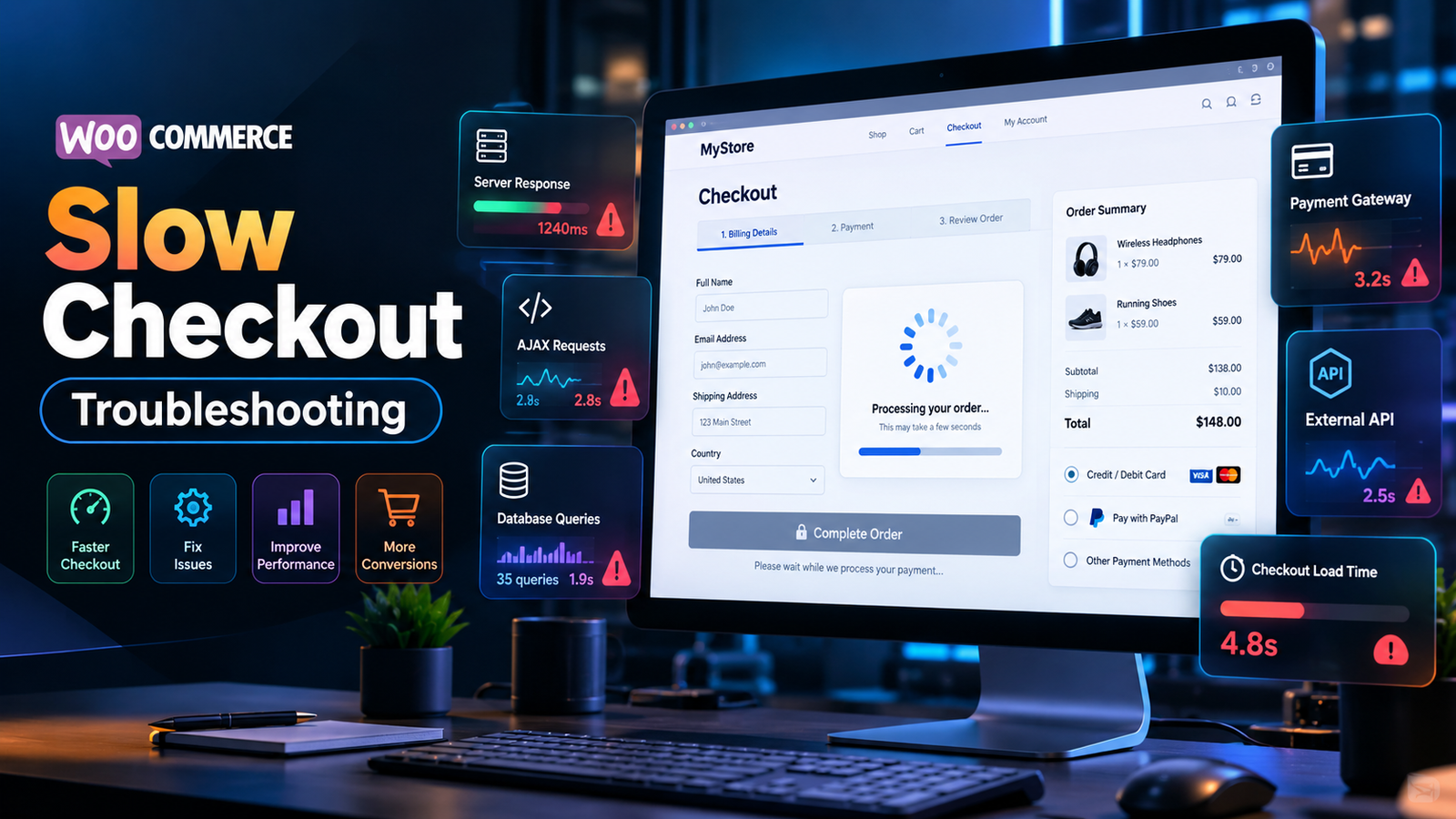
Quick Answer • Diagnostic Overview
A slow WooCommerce checkout is rarely fixed by simply installing another generic caching plugin. Because the checkout page is dynamic and customer-specific, latency is almost always driven by un-optimized AJAX requests (wc-ajax=update_order_review), external shipping carrier API delays, third-party payment gateway timeouts, excessive plugin hook execution, or database locks in wp_options.
A slow WooCommerce checkout can be far more damaging to your business than a slow homepage. Your product catalog may load in under a second, your Google PageSpeed Insights score may display an impressive 95+, and your storefront may appear impeccably healthy — yet your customers freeze in frustration when attempting to place an order.
When a checkout takes 4 to 8 seconds to recalculate totals or display payment options, cart abandonment spikes exponentially. According to standard e-commerce telemetry, every additional second of checkout latency degrades conversion rates by up to 7%. If your store suffers from delayed order updates, endless spinning loaders, or payment timeout errors, this guide delivers a methodical, technical framework for WooCommerce slow checkout troubleshooting to identify and eliminate the true root cause.
Why Is WooCommerce Checkout Slow?
WooCommerce checkout functions fundamentally differently from standard WordPress blog posts or static marketing pages. A typical page can be fully rendered by an edge server, served directly from a Redis object cache, or delivered statically via Nginx FastCGI.
In contrast, checkout is strictly dynamic and non-cacheable. During every single checkout interaction, WordPress and WooCommerce must synchronously execute a heavy sequence of operations:
Customer Information Validation
Sanitizing billing and shipping fields.
Cart Contents & Line Items
Validating prices, variations, and tax classes.
Product Availability & Stock
Verifying real-time inventory levels.
Shipping Rate Calculations
Querying zones, methods, and carrier APIs.
Automated Tax Calculations
Evaluating state, country, and municipal rates.
Coupons & Discounts Engine
Validating usage restrictions and exclusions.
Payment Method Availability
Verifying active gateway options and currency.
Inventory Reservation Hooks
Preventing overselling on concurrent checkouts.
Customer Session State Data
Reading and updating session records in MySQL.
Background AJAX Requests
Synchronizing form changes with the backend.
Third-Party External APIs
Connecting with CRM, ERP, and tax platforms.
Fraud & Security Verifications
Running bot checks, CAPTCHA, or radar rules.
Draft Order Creation
Writing orders, items, and metadata to MySQL.
Payment Gateway Handshake
Tokenizing cards and authorizing transactions.
Because these steps happen in a synchronous sequence, any latency in a single third-party API, an unindexed database query, or a bloated plugin hook stalls the entire checkout request. Let us examine each diagnostic vector step by step.
1. Check WooCommerce AJAX Requests
The very first step when diagnosing slow checkout performance is to open your browser Developer Tools to measure network activity directly:
Now, load your checkout page and alter an address field (such as changing the State or Zip code) or toggle a shipping method. Observe the network request list for:
?wc-ajax=update_order_review
What Metrics Should You Inspect?
- Request Duration & TTFB: How long does the browser wait for the server to calculate and return the response? If Time to First Byte (TTFB) exceeds 1.5 seconds, the bottleneck is server-side PHP or database execution.
- HTTP Status Code: Is it returning a clean
200 OK, or is it silently throwing403 Forbidden(nonce expiration),500 Internal Server Error(PHP fatal error), or504 Gateway Timeout? - Response Payload Size: Does the returned JSON payload contain tens of kilobytes of bloated inline CSS or inline scripts injected by aggressive checkout field plugins?
- Repeated or Cascading Requests: Is the AJAX call triggering once, or is a frontend JavaScript event listener misconfigured to fire 5 to 10 consecutive requests on every single keystroke?
Initial checkout HTML document loaded from server/cache. Looks healthy on basic testing.
The actual interactive order recalculation bottleneck. The customer stares at a frozen loader.
2. Investigate Shipping Calculations
Shipping is one of the most common, yet frequently overlooked, drivers of severe WooCommerce checkout latency.
By default, WooCommerce triggers an order review recalculation whenever any of the following parameters are modified:
- Customer Destination Country
- State / Province / County
- ZIP / Postal Code
- Item Quantity
- Selected Shipping Method Radio Option
While native flat-rate and local pickup methods calculate in milliseconds, third-party shipping integrations and carrier extensions can introduce massive latency.
High-Latency Shipping Sources
- Live Carrier Rate APIs: Direct synchronous HTTP API calls to USPS, FedEx, UPS, DHL, or Royal Mail servers. If the carrier API server takes 2.5 seconds to compute dimensional weight and rate tiers, your customer experiences that full delay before checkout unlocks.
- Print-on-Demand & Dropshipping Platforms: Integrations such as Printful, Printify, or custom dropshipping gateways that recalculate production and shipping fees on every cart change.
- Third-Party 3PL & Fulfillment Systems: External warehouse management APIs querying real-time bin availability and packaging rules.
- Complex Shipping Rules Plugins: Plugins evaluating dozens of conditional logic filters, table-rate weight matrices, and custom tax brackets on every request.
Methodical Shipping Isolation Test Matrix
Disable all carrier plugins. Enable single Flat Rate ($5). Measure AJAX response.
Enable carriers one at a time (e.g., USPS only, then FedEx only) to pinpoint slow APIs.
Check if the carrier plugin caches rates in transients or queries live APIs redundantly.
Test domestic vs. international destination addresses to verify rate query times.
3. Test Payment Gateways
Payment gateways can introduce latency during two separate phases of the checkout journey:
- During Order Review: When the checkout initializes or updates payment fields (e.g., mounting Stripe Elements, PayPal Smart Buttons, Apple Pay / Google Pay tokenization, or Klarna session handshakes).
- During Final Order Submission: When the customer clicks "Place Order" and WooCommerce communicates with the payment processor's tokenization and authorization APIs.
Common payment gateways that require structured latency profiling include:
- Stripe (Credit Cards, Apple Pay, Google Pay, SEPA)
- PayPal (PayPal Commerce Platform, Braintree, PayPal Standard)
- Authorize.Net & Square
- Buy Now Pay Later (BNPL) Providers: Klarna, Afterpay, Affirm
- Regional Gateways: Mollie, Razorpay, Payfast, eWay
Do not disable a live payment gateway on a production store without a staging plan. Always conduct gateway comparison testing on a dedicated staging clone or during scheduled low-traffic maintenance windows using sandbox credentials.
Step-by-Step Gateway Diagnostic Workflow
On your staging environment, follow this testing progression:
- Disable all payment gateways except Cash on Delivery (BACS/COD) or standard Offline Cheque. This provides a baseline with zero external network overhead.
- Measure the duration of
update_order_reviewand order placement. - Activate one live payment gateway (e.g., Stripe) in test/sandbox mode.
- Re-measure the checkout timing. If the order review duration spikes by 2 to 4 seconds, inspect the gateway's API logging under WooCommerce → Status → Logs.
- Check if the gateway is running redundant fraud verification calls, blocking asset downloads, or experiencing webhook connection retries.
4. Check for Plugin Conflicts
A common misconception among store owners is that plugin quantity is the sole cause of slow performance. In reality, a store with 60 well-engineered, lightweight plugins can outperform a store with 15 poorly coded plugins.
The decisive question is: What code are those plugins executing on checkout hooks?
A plugin that has no visible frontend presence on your checkout page (such as an email marketing sync tool or an inventory tracker) can still attach heavy PHP callbacks to:
woocommerce_checkout_update_order_reviewwoocommerce_before_calculate_totalswoocommerce_cart_calculate_feestemplate_redirect
11 Common Plugin Culprits
Checkout Field Editors
Injecting dynamic JS and redundant sanitation loops.
Product Add-ons
Recalculating item meta on every order review update.
Currency Switchers
Live currency exchange API calls on checkout refresh.
Dynamic Pricing Rules
Evaluating complex tier conditions against every cart SKU.
Marketing & Analytics
Blocking external tracking tags during form load.
Security & Anti-Fraud
Synchronous IP reputation lookups on each keystroke.
Multi-Carrier Shipping
Redundant rate calculations across duplicate packages.
CRM Integrations
Creating draft lead records in Salesforce or HubSpot.
Inventory Sync
Live ERP socket checks before order completion.
Email Automation
Triggering cart abandonment webhooks too early.
Unoptimized Snippets
Custom functions.php hooks with unindexed database queries.
The Systematic Deactivation Workflow
Do not randomly disable plugins on your production store. Use an isolated staging clone and follow this sequence:
// Phase 1: Pure Baseline
WooCommerce Core ONLY + Default Storefront or Twenty Twenty-Four Theme
// Phase 2: Core + Payment Gateway
WooCommerce + Primary Gateway (e.g., Stripe) → Measure AJAX Latency
// Phase 3: Systematic Reactivation
Reactivate remaining extensions in small logical batches → Re-test after each batch
5. Look for JavaScript Errors
A WooCommerce checkout can freeze completely or show an infinite spinning loader without any server error occurring — caused solely by a client-side JavaScript crash.
When a JavaScript error occurs on the checkout page, browser execution halts. Because WooCommerce relies on jQuery and its native checkout.js script to unblock the UI when AJAX calls resolve, an unhandled script error prevents the spinner from ever disappearing.
// Browser Console: Typical Checkout-Breaking JavaScript Exceptions
Uncaught TypeError: jQuery(...).block is not a function
Uncaught ReferenceError: wc_checkout_params is not defined
Stripe.js: Failed to mount Elements into empty target container
// Root cause: Aggressive script minification, deferred jQuery execution, or missing DOM wrappers.
Common Causes of Checkout JS Errors
- Aggressive JavaScript Deferral / Delay: Optimization plugins (such as WP Rocket, LiteSpeed Cache, or Perfmatters) delaying core jQuery or
woocommerce.min.jsuntil user interaction. - Minification Collisions: Combining diverse scripts into a single minified bundle, causing scope collisions between payment SDKs and custom theme scripts.
- CDN Optimization Conflicts: Cloudflare Rocket Loader or auto-minification breaking WooCommerce checkout event delegation.
- Outdated Theme Checkout Overrides: Custom theme templates that omit required WooCommerce DOM containers (such as
#order_review).
The Fix: Exclude all cart and checkout URLs from JavaScript combination, minification, and deferral. Specifically exclude handles: jquery, woocommerce, wc-checkout, and your payment gateway SDKs.
6. Don't Cache the Checkout Like a Normal Page
Page caching is essential for WordPress high performance — but applying standard full-page caching to WooCommerce checkout is catastrophic.
WooCommerce checkout relies on unique customer sessions, personalized cart contents, real-time security nonces, and dynamic shipping calculations.
- Cart Cross-Contamination: Customer B sees Customer A's billing address or cart contents.
- Stale Nonces: WordPress security nonces expire, causing immediate 403 Forbidden errors on form submission.
- Broken Order Totals: Discount coupons or modified shipping methods fail to reflect in payment summaries.
- Failed Payment Tokenization: Payment gateway iframes fail to register valid sessions, rejecting transactions.
Correct Caching Rules for WooCommerce
Ensure your server caching layer (Nginx, Varnish, LiteSpeed Cache) and WordPress caching plugins adhere to these strict exclusions:
- Never cache URLs containing:
/cart/*,/checkout/*, or/my-account/*. - Never cache requests where cookies indicate an active cart:
woocommerce_items_in_cartorwp_woocommerce_session_*. - Ensure bypass headers are respected:
Cache-Control: no-cache, must-revalidate, max-age=0.
7. Check Your Hosting and Server Resources
Sometimes, slow checkout is not caused by third-party plugin bugs or faulty code. The server infrastructure itself may simply be under-provisioned for dynamic e-commerce workloads.
Unlike static page requests which require negligible CPU time, each un-cached WooCommerce checkout execution occupies a dedicated PHP-FPM worker thread for several hundred milliseconds to multiple seconds.
8. Check Database Performance
WooCommerce reads and writes extensive dynamic records to MySQL on every checkout sequence. Over time, high-volume stores accumulate millions of orphaned records that degrade table performance.
Critical Database Bottleneck Areas
- Orphaned Session Transients: WooCommerce creates temporary session rows (
_wc_session_*). If cron garbage collection fails, millions of expired rows saturatewp_options. - Action Scheduler Table Bloat: Background tasks in
wp_actionscheduler_actionsaccumulating hundreds of thousands of completed or failed actions. - Autoloaded Options Footprint: Every single WordPress request executes
SELECT option_name, option_value FROM wp_options WHERE autoload = 'yes'. If total autoloaded data exceeds 1.5MB, PHP memory is exhausted before checkout logic even begins. - Unindexed Postmeta Lookups: Custom plugins querying
wp_postmetawithout compound indexes, triggering slow full-table scans.
Never execute raw SQL deletion commands blindly on a live database. Always create a full physical single-transaction snapshot (mysqldump --single-transaction) before running transient purges or index alterations.
For an in-depth real-world breakdown of how database transients caused complete server lockups, read my technical case study: Resolving Runaway Database Session Bloat and Site Crashes on High-Traffic WordPress.
9. Check WordPress Memory
Insufficient PHP memory allocation causes script termination, White Screen of Death (WSoD), or silent checkout AJAX failure.
Navigate to WooCommerce → Status and inspect the WordPress Environment section:
- WP Memory Limit: Should be at least
256MB(ideally512MBfor stores with multiple integrations). - PHP Memory Limit: Controlled at the server/ini level; should match or exceed the WordPress limit.
Why More Memory Is Not Always the Solution
A vital distinction in professional performance engineering: Increasing memory limit from 256MB to 1024MB does not fix a memory leak.
If a rogue plugin is allocating 800MB of RAM during order recalculation, raising the limit simply allows that single request to consume your server's physical memory pool, starving other PHP workers and causing cascading crashes under concurrent traffic. Memory limits should be appropriately sized, but leaks must be diagnosed and eradicated at the code level.
10. Test Your Theme
Your active WordPress theme directly influences checkout rendering performance through:
- Outdated Template Overrides: Themes copying files into
your-theme/woocommerce/checkout/that lack core performance updates or use deprecated hooks. - Visual Page Builders (Elementor / Divi / WPBakery): Heavy checkout builder widgets that wrap the native form in dozens of nested DOM divs and load Megabytes of builder CSS/JS assets.
- Custom Theme AJAX Scripts: Themes attempting custom order summaries or floating cart recalculations alongside WooCommerce native scripts.
Diagnostic Test: Temporarily switch to a default theme (such as Twenty Twenty-Four or Storefront) on a staging copy. If the checkout request duration immediately drops from 4 seconds to 800ms, the bottleneck resides within theme overrides or theme-bundled scripts.
11. Check External API Requests
Modern WooCommerce stores are rarely isolated systems. They integrate with diverse third-party microservices:
If an external automated tax calculation service or carrier API takes 3.2 seconds to respond over HTTPS, your checkout request will wait 3.2 seconds before finishing. No caching plugin on your WordPress site can accelerate a remote third-party server.
Using tools like Query Monitor or APM profilers, inspect the HTTP API Calls panel during checkout to isolate any outbound requests taking longer than 200–300ms.
12. Use Query Monitoring and Server Profiling
For elusive, intermittent, or high-concurrency checkout latency, guesswork and surface speed tests are completely ineffective. Professional diagnosis requires low-level server profiling:
Essential free plugin. Displays database query execution times, slow queries, duplicate queries, and hooks executing during checkout requests.
Inspect the exact breakdown of DNS lookup, SSL handshake, TTFB, and Content Download for every checkout asset and AJAX endpoint.
Configure request_slowlog_timeout = 2s to automatically dump stack traces for any PHP function executing longer than 2 seconds.
Tools like New Relic, Blackfire.io, or Datadog trace the exact execution path across PHP functions, MySQL queries, and external curl requests.
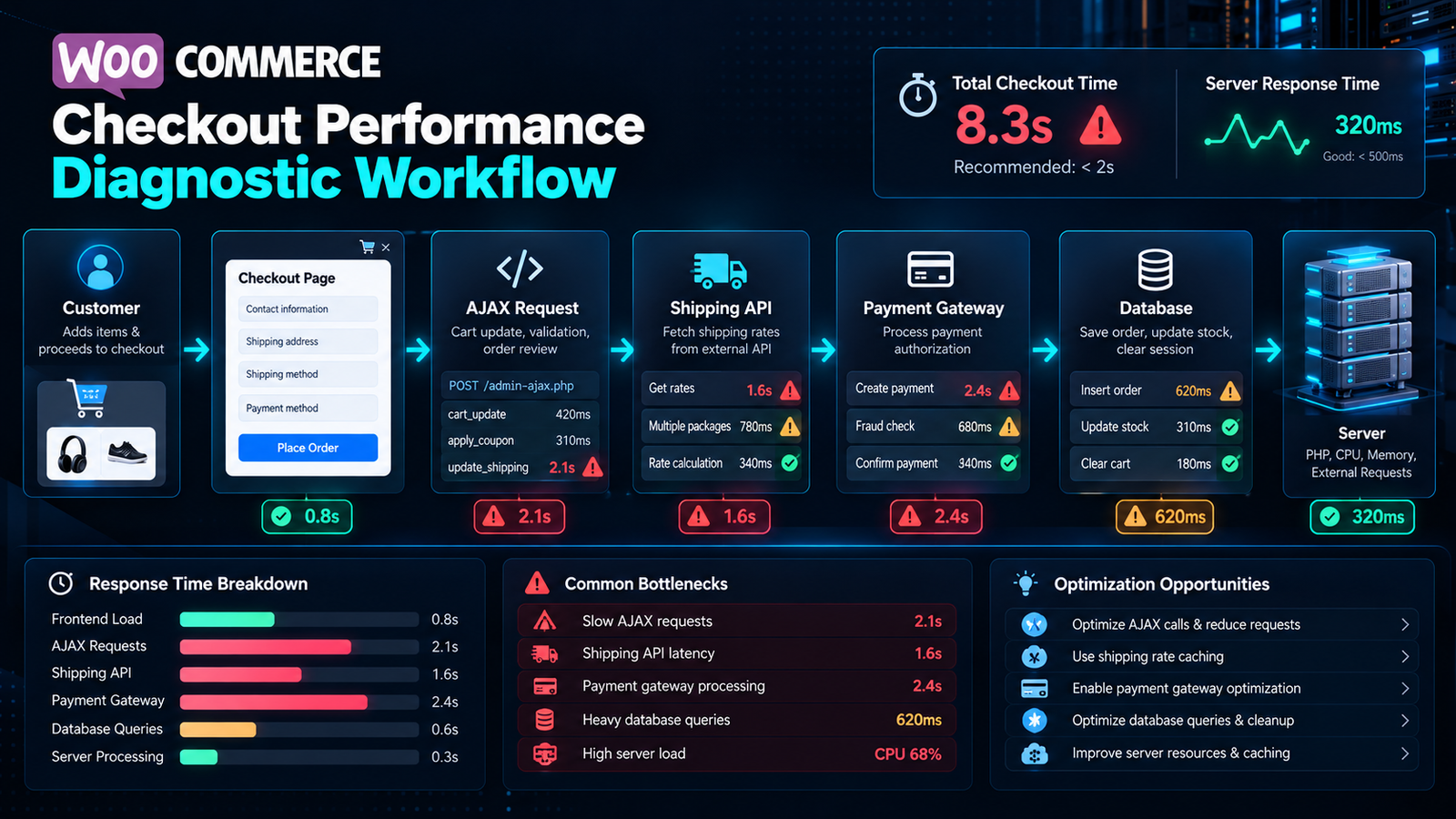
WooCommerce Slow Checkout Troubleshooting Checklist
Follow this structured 10-step diagnostic protocol before making random configuration adjustments:
Reproduce the Latency Consistently
Test across Desktop, Mobile, Logged-in Customer, Guest Checkout, Different Products, and Varied Shipping Destinations.
Inspect Browser Console & Network Tab
Check F12 Console for red JS errors. Inspect wc-ajax=update_order_review duration, TTFB, and HTTP status code.
Review WooCommerce System Status
Navigate to WooCommerce -> Status. Check memory limits, database version, and fatal error logs under Status -> Logs.
Test Plugins Systematically on Staging
Deactivate non-essential plugins. Measure checkout timing with WooCommerce only, then reactivate in structured batches.
Isolate Payment Gateways
Compare checkout response times between offline methods (COD) and individual active gateways (Stripe, PayPal, BNPL).
Audit Shipping Calculations
Temporarily switch to simple Flat Rate shipping. Check whether third-party live carrier rate APIs are introducing network delays.
Test Against a Default WordPress Theme
Switch to Twenty Twenty-Four or Storefront to verify whether theme overrides or page builder widgets are slowing down rendering.
Profile Server & PHP Workers
Check CPU utilization, RAM usage, PHP-FPM worker pools, and review PHP slow logs for execution bottlenecks exceeding 2 seconds.
Review Database Table Health
Check wp_options autoload size, purge orphaned _wc_session_* transients, and inspect slow queries using Query Monitor.
Optimize ONLY After Identifying the Bottleneck
Apply surgical fixes to the exact identified root cause. Never apply random optimization settings blindly.
DIAGNOSE FIRST. OPTIMIZE SECOND.
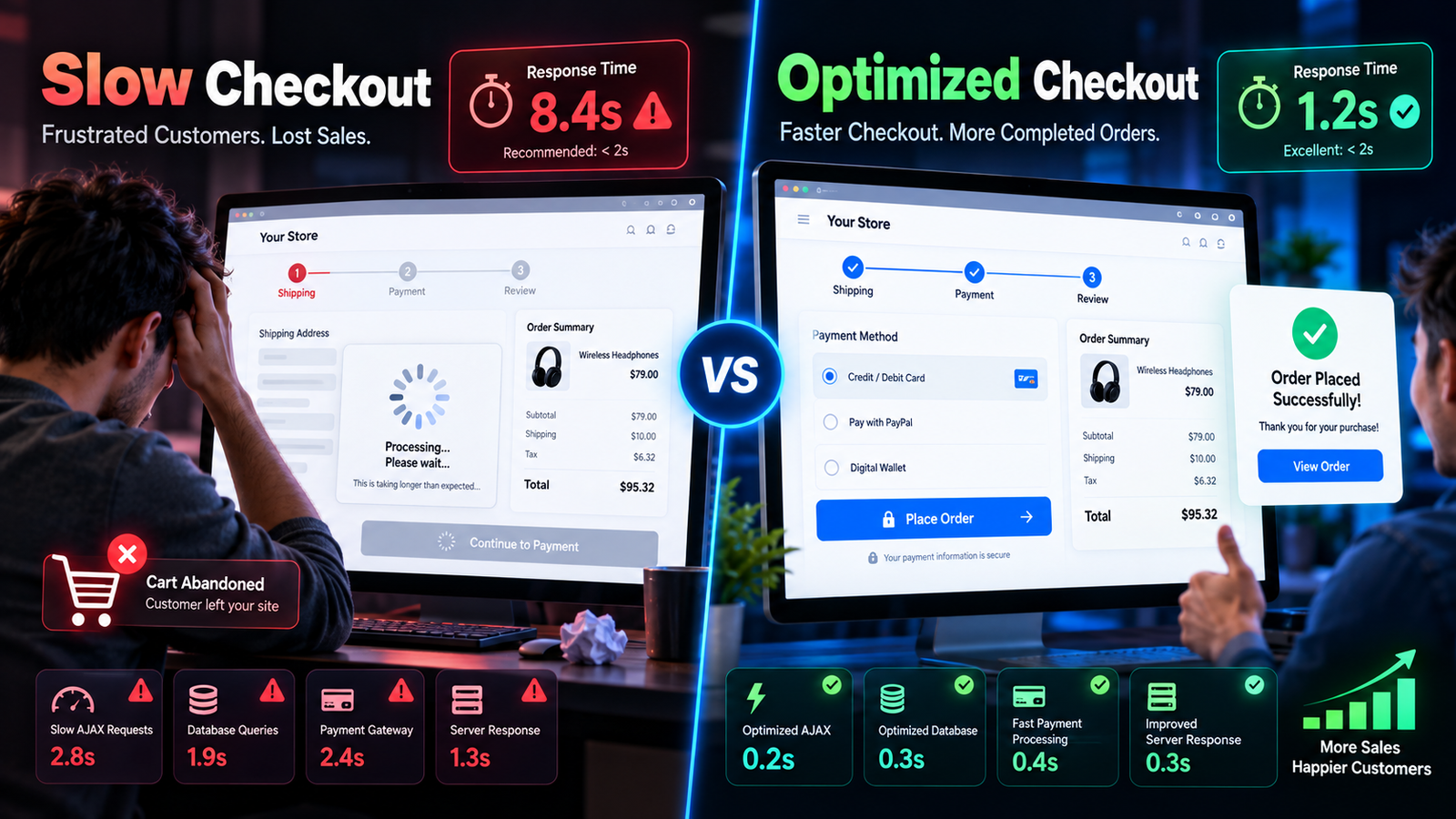
What About PageSpeed Scores?
A frequent pitfall for e-commerce store managers is assuming:
"Our Google PageSpeed Insights score is 95, so our checkout must already be fast."
This assumption is technically flawed.
Google PageSpeed Insights evaluates frontend rendering, asset minification, and visual stability (Core Web Vitals like LCP and CLS), predominantly on static, heavily cached pages like your homepage or catalog.
Cached static HTML, edge CDN delivery, minimal database queries, zero session writes.
Uncached PHP execution, live MySQL transactions, AJAX recalculations, external APIs.
Because your checkout cannot be statically cached, measuring actual user journey telemetry — specifically AJAX response times and server-side TTFB — is the only reliable benchmark for checkout health.
When Should You Hire a WooCommerce Developer?
While minor configuration issues (such as excluding pages from caching) can be handled internally, complex checkout bottlenecks often require professional engineering intervention.
Consider engaging an experienced WooCommerce developer if your store displays any of the following symptoms:
Frequently Asked Questions
Q1. Why is my WooCommerce checkout so slow?
Unlike static content pages, WooCommerce checkout is fully dynamic and uncacheable. It executes intensive PHP operations including session reads, real-time cart recalculations, live shipping rate queries, tax rules, payment gateway validation, and database updates on every change. Bottlenecks in any of these synchronous steps cause checkout delays.
Q2. Why is WooCommerce checkout stuck loading with an endless spinner?
An infinite loading spinner is most commonly caused by JavaScript errors crashing the checkout script (checkout.js), fatal PHP errors returning a 500 status during update_order_review, or external API timeouts from shipping carriers or payment gateways that leave the AJAX handler waiting indefinitely.
Q3. Can a payment gateway make WooCommerce checkout slow?
Yes. Payment gateways communicate with remote banking and merchant servers via REST APIs during checkout. If the gateway makes blocking synchronous calls, checks client tokens, or communicates with a slow external API, the customer will wait several seconds before order review or submission completes.
Q4. Can plugins slow down WooCommerce checkout?
Yes. Plugins that attach heavy callbacks to hooks like woocommerce_checkout_update_order_review or woocommerce_after_calculate_totals execute on every customer interaction. Plugins for dynamic pricing, CRM sync, currency switching, marketing tags, and custom fields frequently introduce severe checkout latency.
Q5. Why is update_order_review slow?
The update_order_review AJAX endpoint fires whenever customer fields (country, state, postcode, shipping method) change. It recalculates taxes, shipping packages, coupons, and totals. Delays are usually caused by external carrier rate lookups, unindexed database queries, or bloated options tables.
Q6. Does a high PageSpeed score mean WooCommerce checkout is fast?
No. Google PageSpeed tests static asset delivery, caching, and frontend rendering, often on a cached homepage. Checkout involves dynamic server-side PHP execution, database queries, and uncacheable AJAX requests that PageSpeed scores do not simulate.
Q7. How do I troubleshoot WooCommerce checkout AJAX?
Open Chrome DevTools (F12) -> Network tab -> filter by Fetch/XHR. Trigger a checkout update and inspect the wc-ajax=update_order_review request. Check its Duration, Time to First Byte (TTFB), status code, and response payload to isolate server-side processing delays.
Q8. Should WooCommerce checkout be cached?
No. The cart, checkout, and account pages must never be cached by page caching plugins or edge CDNs. Caching these pages causes stale session data, cart cross-contamination between customers, broken nonce tokens, and failed payment processing.
Need Help Fixing a Slow WooCommerce Checkout?
If your store suffers from delayed order updates, endless loading spinners, failed payment processing, or unexplained server lockups, I can diagnose the underlying bottleneck. Rather than simply installing another cache plugin, I investigate the exact PHP hooks, SQL queries, and API latency points for a permanent, measurable fix.

Saiful Asif
Verified ExpertSenior Full-Stack WordPress & WooCommerce Developer
Saiful Asif is an experienced web engineer with 7+ years of international development experience and 120+ verified client projects across 15+ countries. Specializing in high-concurrency WooCommerce store scaling, Core Web Vitals speed optimization, bespoke ACF Pro theme architecture, and emergency database recovery.